Network Operations
MTU in GRE tunnels: where to start with connectivity problems
 WireShield Team · 4 min read
Read post


Network Operations
When your origin server stops responding, visitors can see the last good copy of each page instead of an error. Learn how it works, its limits and how to set it up.
WireShield Team
6 min read
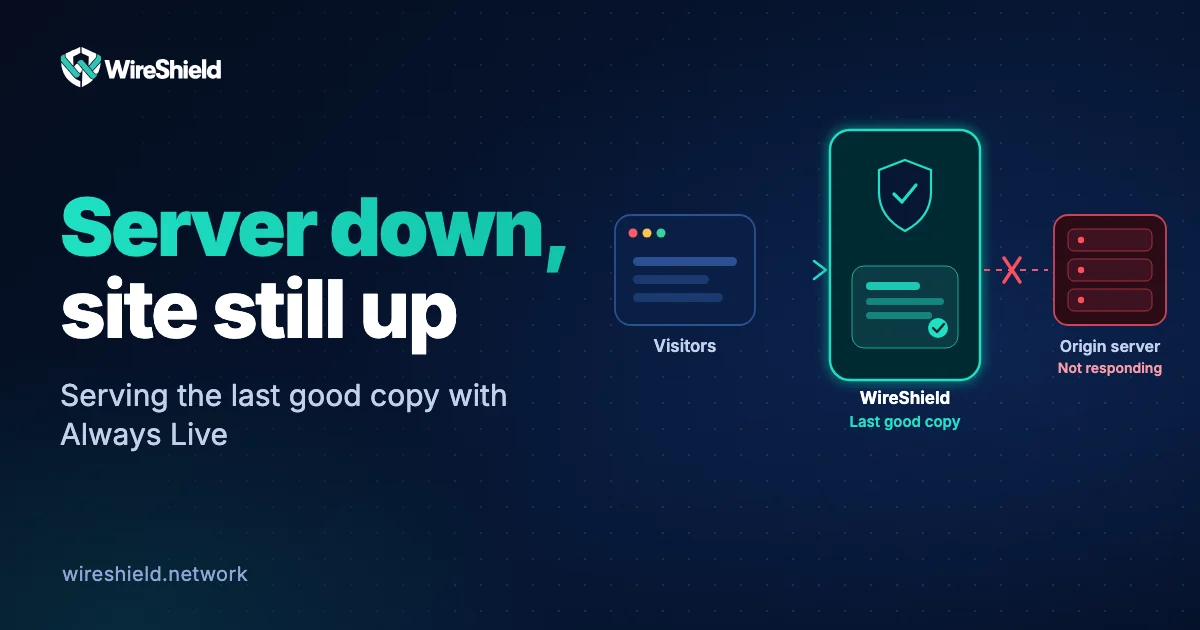
The most practical way to keep your site up when your server stops responding is to serve visitors the last good copy of each page from the cache instead of an error page. If the layer in front of you (a CDN or WAF) already stores your pages, visitors keep seeing the site even while the origin server is down for a while. Always Live in WireShield Web Protection does exactly this: when the origin server stops responding, visitors see the last good copy of each page, and the feature is on by default. This guide explains how to keep your site up during a server outage, the limits of this approach and how to set it up.
Common reasons why an origin server stops responding, even briefly:
| Method | How it works | Upside | Downside |
|---|---|---|---|
| Static maintenance page | A fixed "we'll be back" page is shown instead of the error | Simple | Visitors cannot see the site |
| Failover server | Traffic switches to a second origin server | Content stays live | Extra infrastructure and synchronisation cost |
| Serving stale content | The last good copy from the cache is served | No extra infrastructure, pages stay visible | Only content that was cached; data can be old |
Serving stale content is the lowest-cost approach for most content sites, brochure sites and documentation sites.
The idea rests on standard HTTP caching behaviour. The IETF's RFC 5861 defines the stale-if-error extension: when the origin server returns a 500, 502, 503 or 504 error, or there is a network or DNS problem, the cache may keep serving an expired response. The main HTTP caching standard, RFC 9111, also defines that caches may serve stale responses under certain conditions. In a protection layer that works the same way, if the origin server does not respond when a visitor requests a page, the last good copy from the cache is served.
For a copy to be served from the cache, the page must have been cached earlier. So:
Always Live in Web Protection provides the following:
no-store or private, when the response sets a cookie (Set-Cookie) or when the request carries an Authorization header. Personalised pages are therefore not served as copies./api/ or /account/ from the cache.No, it is on by default. What matters is that your pages are cached; HTML pages need a cache rule.
No. The cache only stores GET and HEAD requests; form submissions and personalised pages cannot be served as copies. Always Live keeps public pages visible.
Yes, they see the last good copy. New changes you make during the outage are not visible until the server is back.
No. Against DDoS attacks you need remote or inline protection that filters in front of your link. Always Live aims to keep public pages visible whatever the cause of the outage.
If you purge the cache, the stored copies are deleted too, and if the origin server is not responding there is no copy left to serve. Purge while your origin server is healthy.
Let us plan your cache rules and outage scenario together. You can look at the Always Live section on the Web Protection page or talk to the technical team.
Network Operations
WireShield Team · 4 min read
Read post
Network Operations
WireShield Team · 6 min read
Read post
Contact our team to talk through your technical needs.