


Introduction and concepts
This guide explains how to install and operate the WireShield DDoS protection appliance, step by step. Release: 1.10.0.
0.1 How to read this guide
- The web interface opens in English by default. Turkish can be selected from the language menu (globe icon) at the top right; the choice is stored in the browser.
- Menu paths are written as Menu → Page → Card, for example Network Settings → Access & TLS.
- Console texts (installer, first-boot wizard,
WireShield>shell) are English, plain ASCII. - Examples use documentation address ranges only (192.0.2.0/24, 198.51.100.0/24, 203.0.113.0/24, 2001:db8::/32) and documentation AS numbers (64496–64511, 65536–65551). Replace them with your own.
- Screenshots are placed in the text. They were taken in a lab environment built with documentation addresses.
0.2 What WireShield is
WireShield inspects traffic to your protected IP prefixes and drops attack traffic.
| Component | Role |
|---|---|
| Data plane (XDP/eBPF) | Inspects and drops packets in the network driver, before the operating system stack. Keeps running with the last configuration if the control service stops or restarts (fail-static). |
Control plane (wsd) | Detection, rule management, BGP, tunnels, reports, notifications and the API. |
| Web interface | Three views: Appliance Admin, MSSP Operator, Customer Portal. |
Portal server (wsportal) | Thin reverse proxy that publishes the MSSP and customer panels from a separate server. The admin panel is never reachable through the portal. |
Console shell (WireShield>) | Restricted command line on the console and over SSH (wsctl shell). |
0.3 Three views and roles
The user's role decides the view. Permissions are enforced by the API on every request.
| Role | View | Where to sign in | What it does |
|---|---|---|---|
admin | Appliance Admin | The appliance management interface (default https://<management-ip>:8443) | Device settings, network, BGP, licence, updates, users. Can switch with Switch to MSSP console view in the user menu. |
operator | MSSP Operator | The MSSP panel on the portal server, or the appliance management interface | Customers, prefixes, profiles, rules, tunnels, reports, integrations. |
viewer | MSSP Operator (read-only) | Same | Sees everything, changes nothing. |
tenant | Customer Portal | The customer portal on the portal server (or the appliance's local portal port) | Only its own prefixes, attacks and reports; if permitted, mode, list and custom-rule changes. |
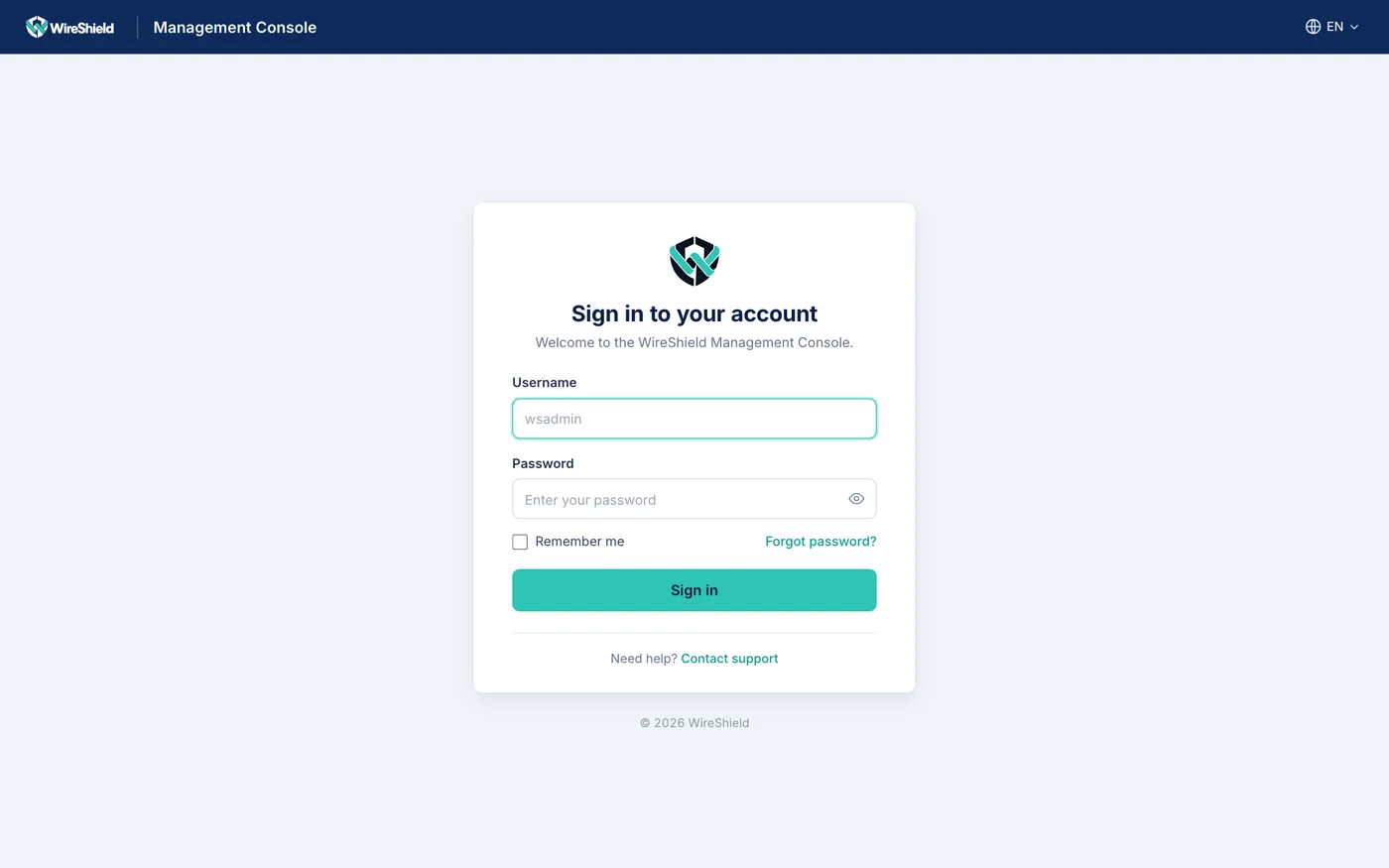
Login page (Sign in to your account) — logo, username, password, 2FA code field, language selector
0.4 Deployment topologies
Routed (L3) inline — dual port
The appliance sits as a router hop between the upstream router (ISP/border router) and the downstream switch.
Internet → Upstream router ──/30 or /31── [data port 1] WireShield [data port 2] ──/30 or /31── Downstream switch → servers- The upstream router routes the protected prefixes to the appliance's upstream address (static route or BGP).
- The appliance cleans the traffic and forwards it to the downstream switch (next hop). Attack traffic is dropped on the upstream port.
- Keep a backup route on the router that bypasses the appliance (for example Junos
qualified-next-hop). With BFD, failover takes about one second (see Chapter 3). - Return traffic can optionally be sent through the appliance (required for symmetric protection).
Single-port POP
Where there is no router or switch, the ISP cable connects directly to the appliance. Traffic enters on the ISP port, is cleaned and leaves through the same port inside a POP tunnel (GRE or GRE-in-UDP) to the POP that delivers it to customers. Management uses the same cable with a separate IP address and allowed management networks.
Service mode (GRE/BGP)
The appliance announces protected prefixes over BGP; cleaned traffic is delivered to the customer's router through a GRE tunnel. Customers can announce their prefixes over BGP inside the tunnel.
0.5 Prefix operating modes
| UI name | API value | Behaviour |
|---|---|---|
| Automatic (on attack) | auto | Traffic is monitored; when an attack is detected the profile's filters switch on by themselves and switch off when it ends. Recommended production mode. |
| Always On | enforce | The profile's filters are always on. |
| Monitor | sensor | Traffic is only monitored; nothing is dropped. Attacks and Would drop counters are still recorded. |
| Learning | learning | Like Monitor, and also learns the prefix's normal traffic to suggest thresholds. Attack records are labelled as learning mode ("would have"). |
| Bypass | bypass | No filtering and no attack detection. Emergency use only. |
Recommended order: Learning or Monitor → (review the Would drop counters for a while) → Automatic (on attack). For shadow operation see Chapter 7.11.
The console mode command switches only between sensor, enforce and bypass, the customer portal only between Monitor (sensor) and Always On (enforce); the change is temporary. The permanent mode (including Automatic and Learning) is set by staff on the prefix page.
0.6 Detection and mitigation
- Detection opens an attack record (incident); it never drops traffic by itself.
- Filtering happens only for prefixes in Automatic (on attack) (while the attack lasts) or Always On, using the prefix's protection profile.
- Every prefix uses one profile. Prefixes without a profile use the built-in default profile (profile 0): it has default detection (learned baseline ×5, minimum 200 Mbit/s / 20 kpps, 2 Mpps total) but no filters. For filtering, assign a profile with filters (for example Mixed hosting / VPS; see Chapter 7).
0.7 Evaluation order (in which order a packet is checked)
Every packet to a protected prefix is checked in this order; the first step that decides wins and the rest is skipped:
- Global allow-list (operator): the packet passes, nothing else is checked
- Global block-list (operator)
- The prefix's allow-list: passes (cannot override the operator's global block-list)
- The prefix's block-list
- Malformed packets (header structures used for evasion)
- The prefix's custom rules, by priority (lowest number first); an Allow rule passes the packet
- Spoofed-source filter (if enabled in the profile)
- Symmetric protection
- Ready-made application protection (UDP services)
- Profile: threat intelligence → country/ASN policy → profile rules (top to bottom) → amplification filter → allowed protocols → invalid TCP flags → SYN validation → ACK/RST validation
What happens to a packet that matches depends on the prefix's operating mode: it is dropped in Always On, and in Automatic while an attack is going on; in Monitor (and in Automatic without an attack) the same checks run but only count as "would drop". Exception: custom rules with When = Always also drop in Automatic mode when there is no attack. Bypass skips all checks.
0.8 A short note on licensing
An expired licence never cuts traffic: running protection and the existing configuration continue, only new features and additions are blocked. An appliance without a usable licence (none installed, or a licence for a different appliance), however, protects at most 3 prefixes, 2 customers and 2 GRE tunnels and limits the total traffic passing through it to 100 Mbps (the excess is dropped). Import the licence before the appliance carries production traffic. Details: Chapter 11.