


Rules, lists, GeoIP and threat intelligence
8.1 Rule types
| Type | Where | Who |
|---|---|---|
| Custom rules (per prefix) | Prefix detail page → Custom rules card; in the customer portal Protection → Custom Rules | Staff; customer if permitted |
| Profile rules | Rules & Signatures → profile editor → Rules | Staff |
| Prefix allow/deny lists | Protection → Allow & Block Lists (Per prefix) and the prefix detail page; in the customer portal Protection → Allow-list | Staff; customer if permitted |
| Global allow/deny lists | Protection → Allow & Block Lists (All prefixes) | Staff |
| Threat intelligence | Protection → Threat Intelligence | Staff |
| Country/ASN | Profile Country / ASN policy (Chapter 7.9) and rule fields (Source country, Source ASN) | Staff; customers in custom rules |
For the evaluation order, see Chapter 0.7.
8.2 Custom rules (per prefix)
Custom rules are evaluated before the protection profile, lowest priority number first; the first matching rule decides. The Allow action skips all profile filters for matching traffic.
- On the prefix detail page, press Add rule on the Custom rules card (customer: Protection → Custom Rules, choose the prefix first).
- Fields:
- Priority (1 = first) (1–1000)
- Name (e.g. "e.g. block game port")
- When: Always or During attack only
- Action: Drop, Allow, Rate limit, Count only
- With Rate limit: Packet rate (pps, 0 = none), Bit rate (Mbit/s, 0 = none) and Applies: whole prefix (total), per destination IP or per source IP
- Match (empty fields match everything): Source IP or CIDR, Protocol, Source port, Destination port, TCP flags, Packet length, Source country, Source ASN, Fragments (any / only fragments / no fragments)
- Payload (first bytes after the UDP/TCP header; needs protocol udp or tcp): optional byte-pattern match (8.3)
- Expires (optional): expired rules are removed within about a minute
- Disabled: turns the rule off without deleting it
- Save. A source or at least one match field is required.
The rule table shows each rule's priority, name, when it applies, match, action and the Matched, Would drop, Dropped counters. Counters reset when the rule content changes (not when only the priority changes).
Mode effect:
| Mode | "Always" rules | "During attack" rules |
|---|---|---|
| Automatic, no attack | apply | skipped |
| Automatic, under attack | apply | apply |
| Always On | apply | apply |
| Monitor / Learning | counted as "would drop" only | counted as "would drop" only |
| Bypass | not evaluated | not evaluated |
Limits: 16 rules per prefix, 4096 per appliance. The customer's rule limit is set in the customer permissions (default 8, maximum 16). The source cannot be wider than IPv4 /8 or IPv6 /32; reserved ranges are refused. A customer's Allow rule needs a specific source (IPv4 /16, IPv6 /48 or narrower).
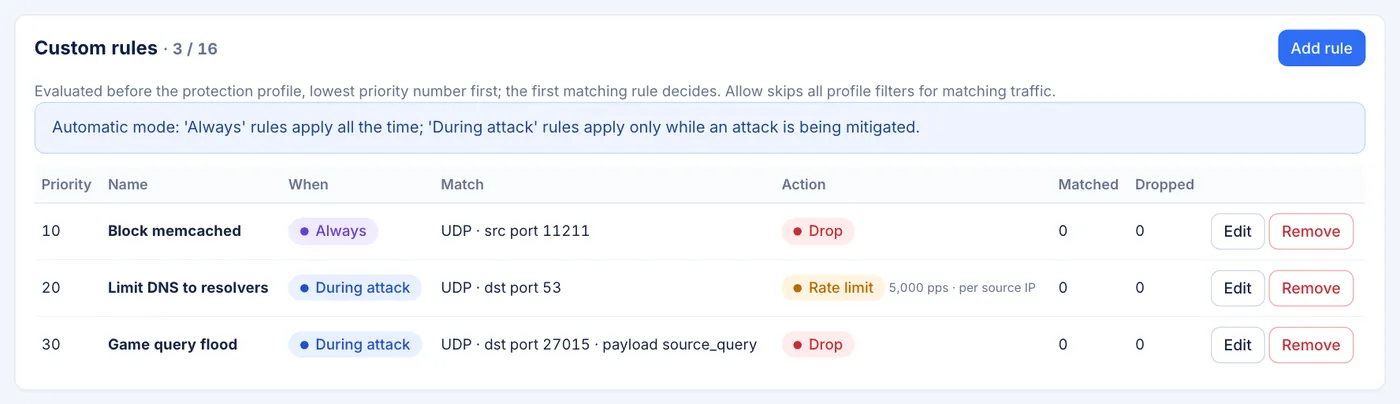
Prefix detail → Custom rules card — rule table and counters 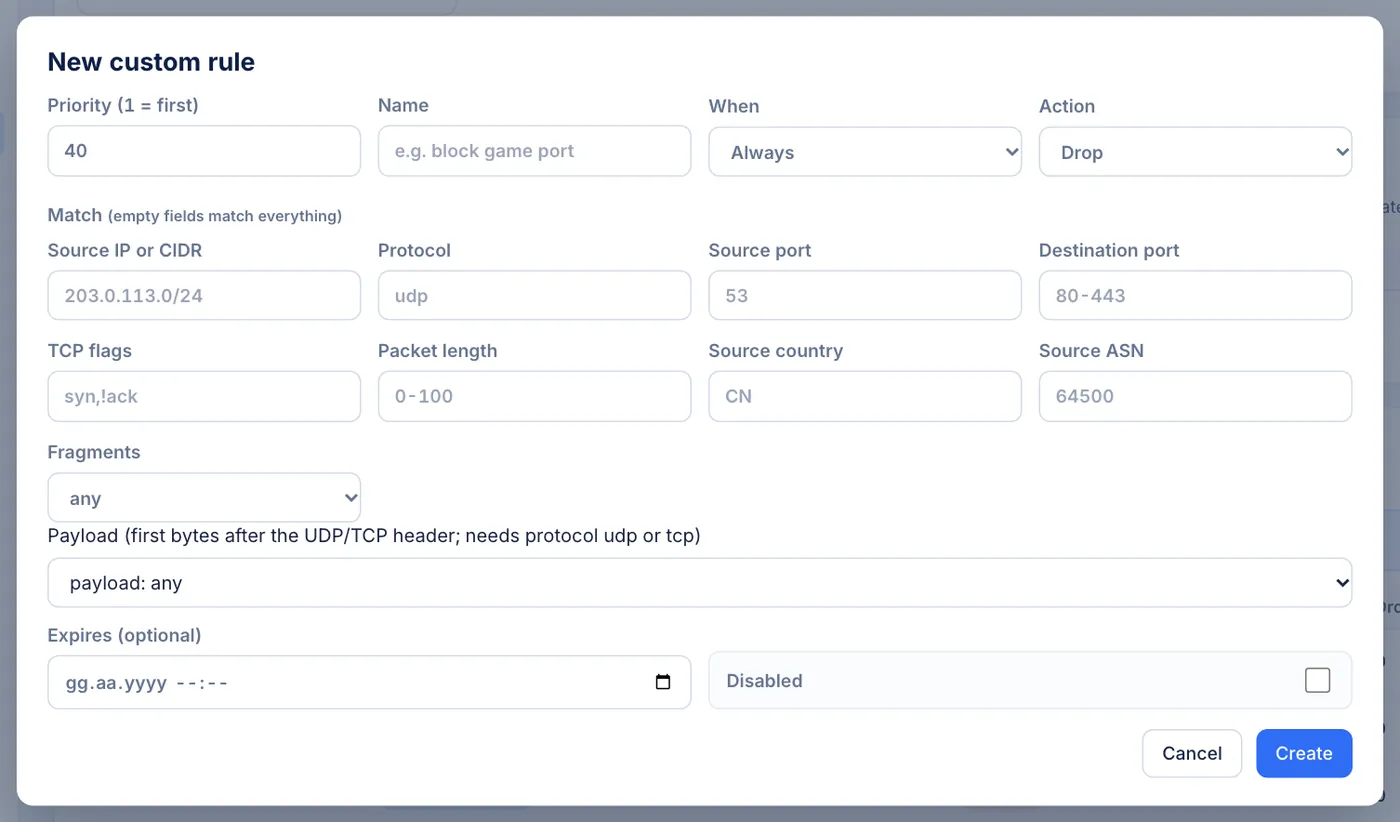
New custom rule dialog — priority, when, action, match fields
8.3 Profile rules
The Rules section of the profile editor defines rules applied to every prefix using the profile (evaluated top to bottom; the first match decides).
- Each rule: name, action (Drop, Rate limit, Allow, Count only), rate limiter (for Rate limit) and match fields: protocol (e.g.
udp), source port (e.g.53), destination port (e.g.80-443), TCP flags (e.g.syn,!ack), packet length (e.g.0-100), country (e.g.CN), source ASN and payload (below). - Reorder with Move up / Move down. At most 16 rules per profile.
- Count only rules and Rate limit rules under their limit fall through to the next rule.
- Extra matches not shown in the form (for example TTL or ICMP type, added through the API) are kept and shown with an "also matches" note.
Payload (signature) match (profile rules and custom rules): every rule has a payload selector under its match fields:
- payload: any: no payload match (default).
- payload: template: a built-in signature:
source_query,source_oob,quake3_getinfo,quake3_getstatus,raknet_ping,raknet_connect,gamespy_query,ts3_init,wireguard_initiation,tls_handshake,ssh_banner. If the rule's protocol is empty, the template sets it (e.g.udp); a note shows the template's typical ports. - payload: hex bytes: 1–8 bytes in hex (e.g.
ffffffff54). - payload: text: 1–8 characters (e.g.
getinfo).
For hex and text patterns, offset (0-64) is the position after the UDP/TCP header (empty = 0) and mask (hex, optional) selects the bits that must match. The rule table shows the match as payload=<template> or payload=0x<bytes>@<offset>. Payload matches never match fragmented packets; use a separate fragment rule for fragments. Payload rules are a licensed feature (Chapter 11.4).
8.4 Allow and deny lists
Prefix lists (customer):
- In the customer portal, open Protection → Allow-list and choose the prefix.
- Under Allow-list (always pass) or Block-list (always drop), enter an IP or CIDR and a Comment and press Add.
- To remove an entry, press Remove on its row.
For the customer to edit lists, Can edit allow/deny lists must be on in Quotas & Permissions; otherwise the page shows "List editing is not enabled for your account". The list limit per prefix defaults to 100 (List limit per prefix). A single IP, or at least IPv4 /8 or IPv6 /32; private, loopback and multicast sources are refused; a source cannot be in both lists.
Staff: Protection → Allow & Block Lists (admin and operator can edit; viewer sees the lists read-only):
- All prefixes: the global Allow-list (always pass) and Block-list (always drop), applied to every protected prefix before everything else. Use the allow list for, for example, your monitoring systems, upstream routers and partner networks. On the block list the widest network accepted is IPv4 /8 or IPv6 /16. Entries defined in the configuration file are marked (config file) and cannot be removed in the panel. A customer cannot override the global block list.
- Per prefix: choose the prefix in the selector next to the heading; the same lists as in the customer portal, with the same limits. The prefix detail page also shows the prefix's lists under Allow & Block Lists.
- To add an entry, enter IP or CIDR and Comment and press Add; to remove it, press Remove. Each entry shows who added it and when.
Allow lists take precedence over every filter. Like the other filters, block lists drop only while protection is active (Always On, or Automatic during an attack); in Monitor they only count (Chapter 0.7). In the console shell, show lists shows the lists.
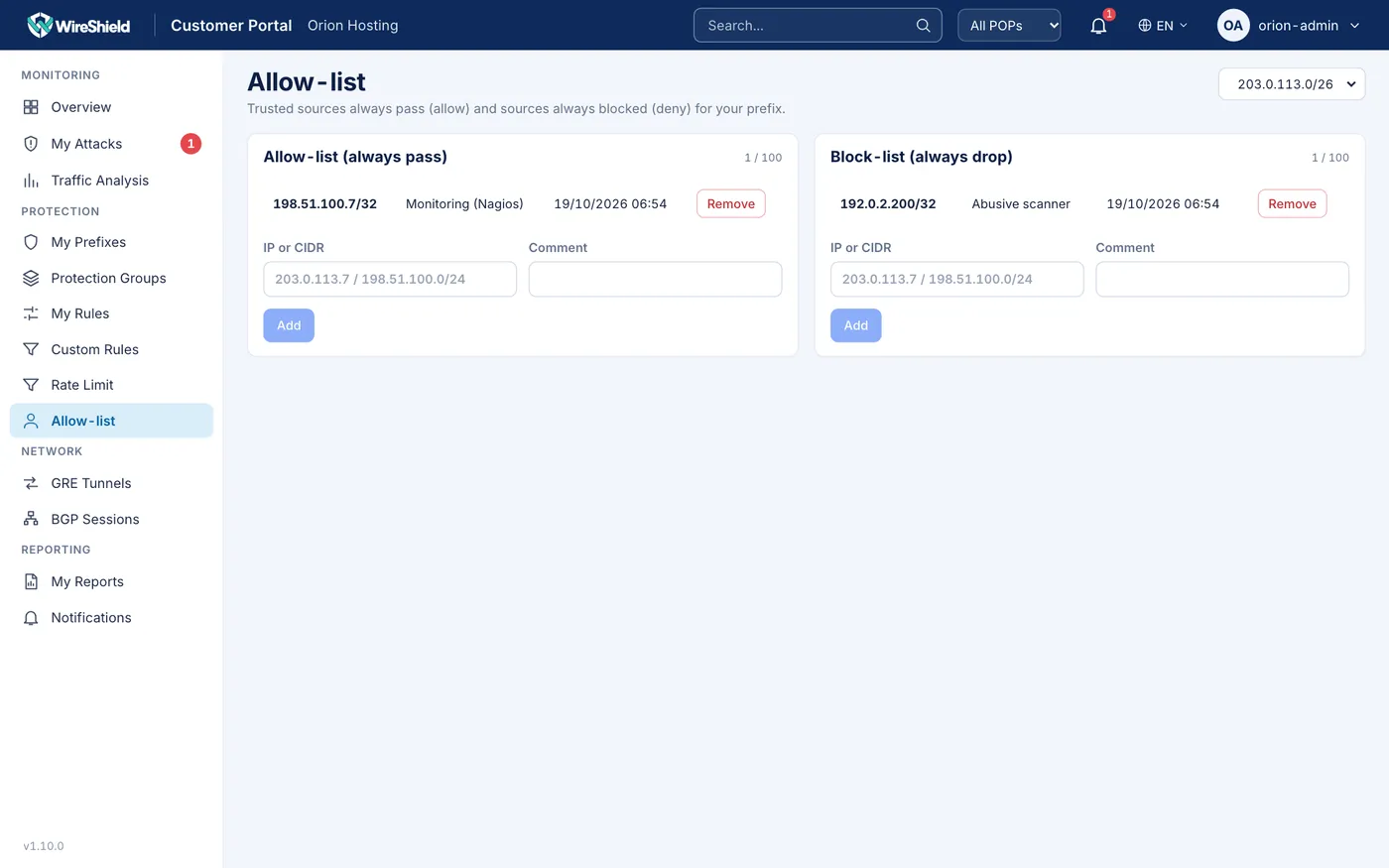
Customer Portal → Allow-list — allow and block lists, Add form
8.5 GeoIP database
Country/ASN rules, reports and traffic analysis use a GeoIP/ASN database. Without a database, country and ASN columns show "unknown" and country/ASN rules do not match. No database ships with the product.
MaxMind GeoLite2 automatic update (admin only):
- Create a free GeoLite2 account at maxmind.com and generate a licence key.
- Open Management → GeoIP Database.
- On the MaxMind GeoLite2 automatic update card, enter Account ID, License key and Update interval (hours) (6–168); keep Automatic updates enabled ticked.
- Save, then Update now.
The appliance needs DNS (Chapter 3.8) and HTTPS access to the internet. The card shows the Loaded database (IPv4/IPv6 ranges, countries and ASNs, source, import time), last success, database version, next update and last error. Remove settings stops automatic updates; the loaded database stays. The licence key is never shown after saving.
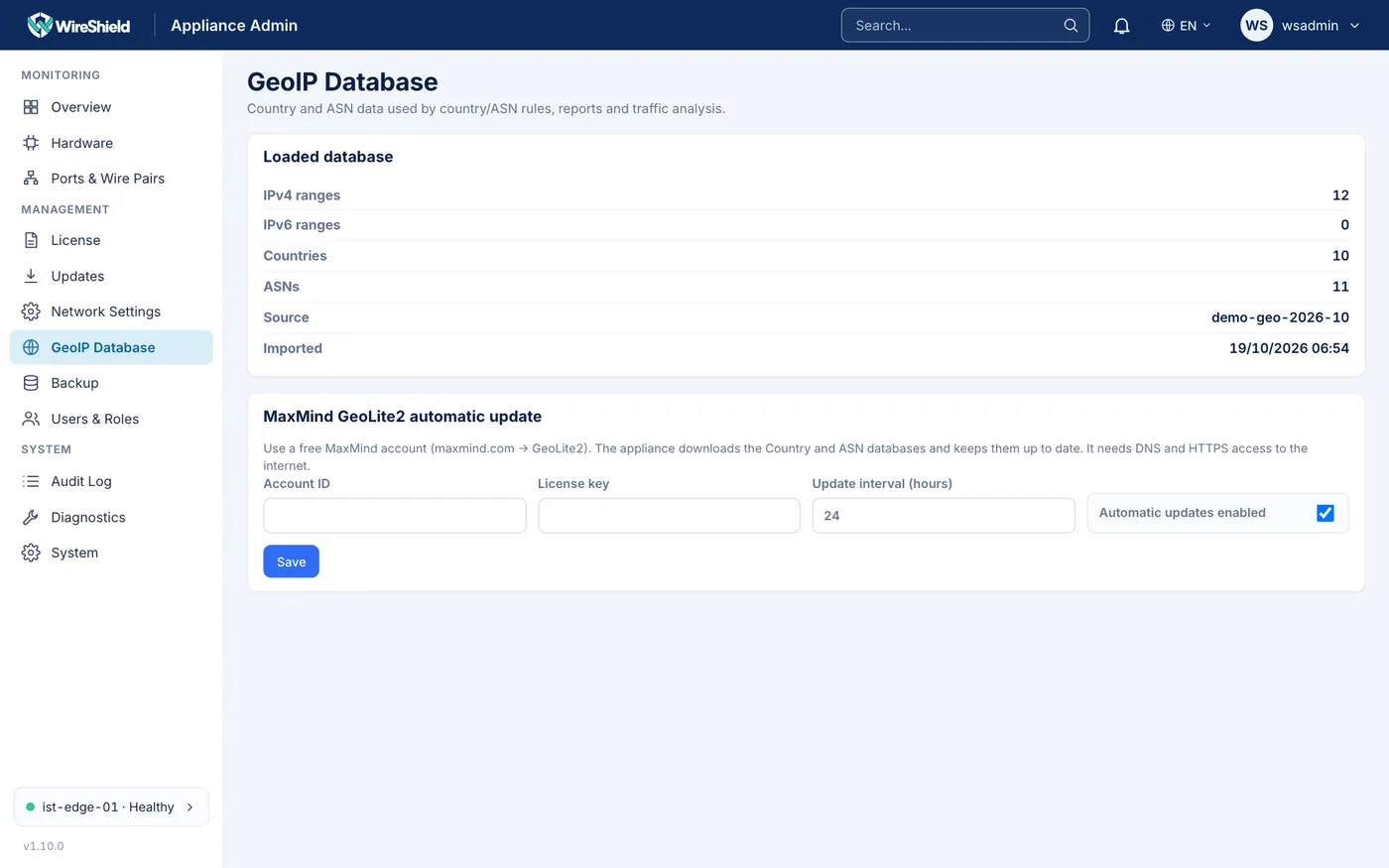
Management → GeoIP Database — loaded database and MaxMind GeoLite2 automatic update card Blocking by country or ASN: for a whole profile, use the profile's Country / ASN policy (Chapter 7.9); for single rules, use Source country (two-letter country code, e.g. CN) or Source ASN in a custom rule or profile rule. Sources with no database entry never match.
8.6 Threat intelligence
The Protection → Threat Intelligence page manages reputation lists of known-bad sources: URL feeds you add, your own entries and the signed vendor feed.
Listed sources are acted on only for prefixes whose profile has a threat-intelligence action, and only while protection is active (Rules & Signatures → profile → Threat intelligence).
Defining actions in a profile: in the profile editor's Threat intelligence section, choose an action per category: Monitor, Rate limit, Drop or off. Categories: Botnet, Reflector (amplifier), Scanner, Tor exit, Open proxy, Own entries / URL feeds. For Rate limit, choose a Rate limiter. If a source is in several categories, the strictest action wins.
Adding a URL feed:
- Add URL feed.
- Name, List URL (http/https), Category, Update every (5 min – 7 days), Enabled.
- Add. The first download starts right away.
Format: one IPv4/IPv6 address or CIDR per line; text after #, ; or // is ignored. Ranges that are too broad (wider than IPv4 /8 or IPv6 /16), loopback, multicast and link-local addresses are skipped. New lines are added, lines removed at the source are removed here too. If a download fails, the previous data is kept and the download is retried after 5 minutes. Limits: at most 32 feeds, 250,000 entries in total across enabled feeds, 32 MiB per file. Secret-looking URL parameters (keys, tokens) are masked.
The feed table shows category, interval, entries, last update, skipped lines and errors; Update now downloads immediately.
Own entries: in the Own entries section, enter an IP or CIDR, Expires after and an optional comment, then Add. These entries are evaluated in the "Own entries / URL feeds" category.
IP lookup: in Check an IP address, enter an address and press Check: the page shows the category it is listed in (vendor feed or own entry) or that it is not listed.
The page also shows the number of entries in the data plane, the vendor feed status and rejected packages. The appliance does not blacklist attacking sources automatically.
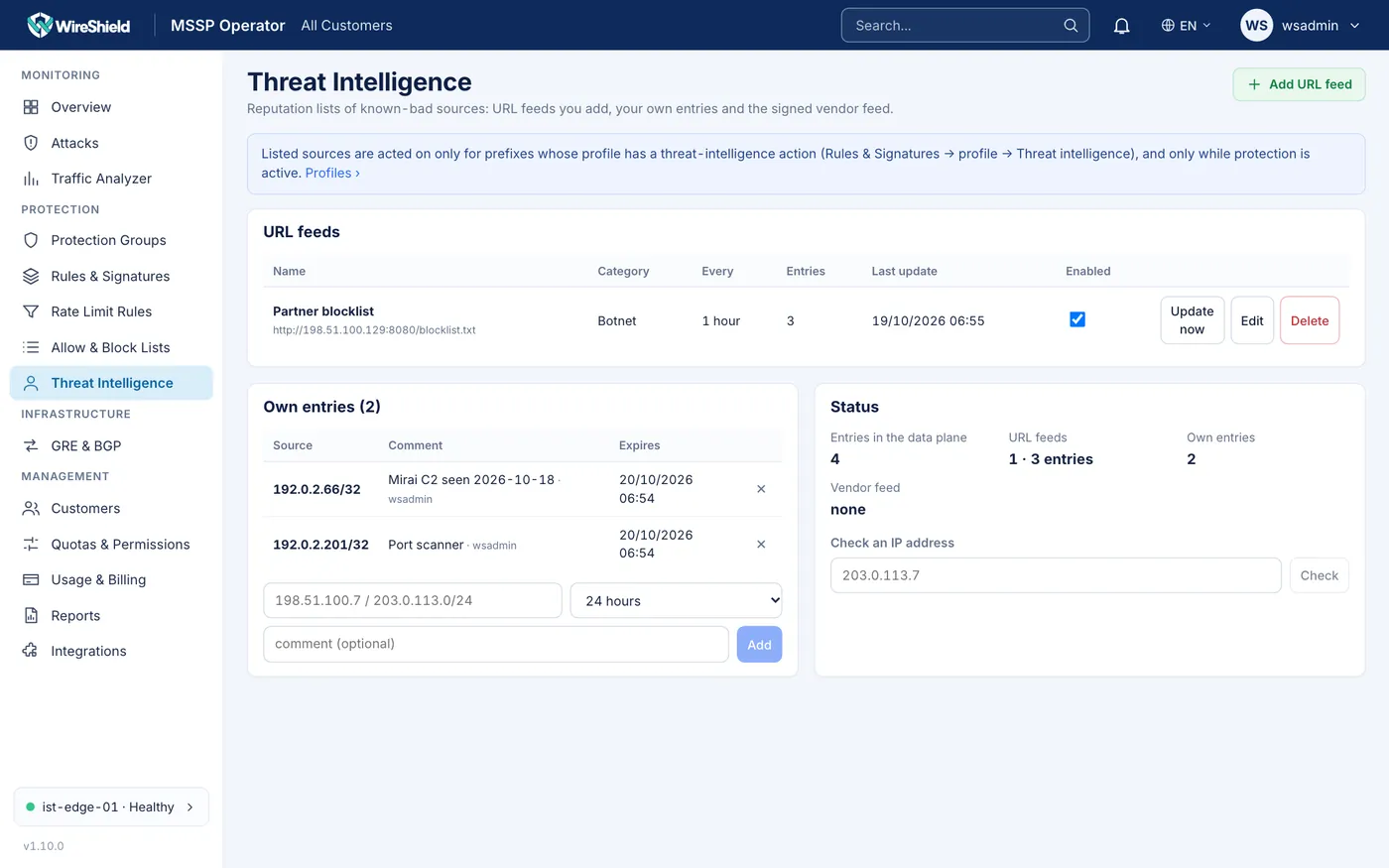
MSSP → Threat Intelligence — URL feeds table, own entries, IP lookup
8.7 Rule suggestions from an attack
From an attack's sample archive the appliance can produce rule suggestions with a measured side effect on legitimate traffic (on the device, deterministic; no external service). Suggestions are always generated as Count only rules and never applied automatically. To list them, in the console shell:
incident suggest <attack-id>Risk levels: low (≤ 0.5 % of legitimate traffic matched), medium (≤ 5 %), high, unknown. To use a suggestion, add it as a Count only rule in the profile editor (8.3), review its counters, then change it to Drop by hand.
8.8 Change history and rollback
Every protection change (profile, limiter, list, group) creates a new revision; the last 100 are kept. In the console shell:
protection revisions
protection revision <n>
protection rollback <n> -dry-run
protection rollback <n>
A rollback applies the old snapshot as a new revision, so a rollback can itself be undone. Customer/prefix assignments are not part of the rollback.