


Customers and users
9.1 Roles
| Role | View | Summary |
|---|---|---|
admin | Appliance Admin (+ MSSP view) | Everything: appliance, network, BGP, licence, updates, users, 2FA exemptions. |
operator | MSSP Operator | Customers, prefixes, profiles, rules, tunnels, reports, notifications; can manage only users with the tenant role. Network diagnostics and PCAP. |
viewer | MSSP Operator (read-only) | Sees everything, changes nothing (fields are disabled). |
tenant | Customer Portal | Only its own customer's prefixes, attacks and reports; mode, list, custom-rule and notification changes as permitted. |
tenant users cannot sign in on the management listener, and other roles cannot sign in on the customer portal. A customer trying to reach another customer's resource gets "not found".
9.2 Creating a customer
- On MSSP → Management → Customers (or on the MSSP Overview), press Create Tenant.
- Fields:
- ID (lowercase, digits, dash): e.g.
customer-a. - Name
- Quota (Gbps, 0 = none)
- Max prefixes (0 = unlimited)
- Create.
The customer list shows plan, status, number of prefixes, quota usage and active attacks. Click a row to open the customer detail page.
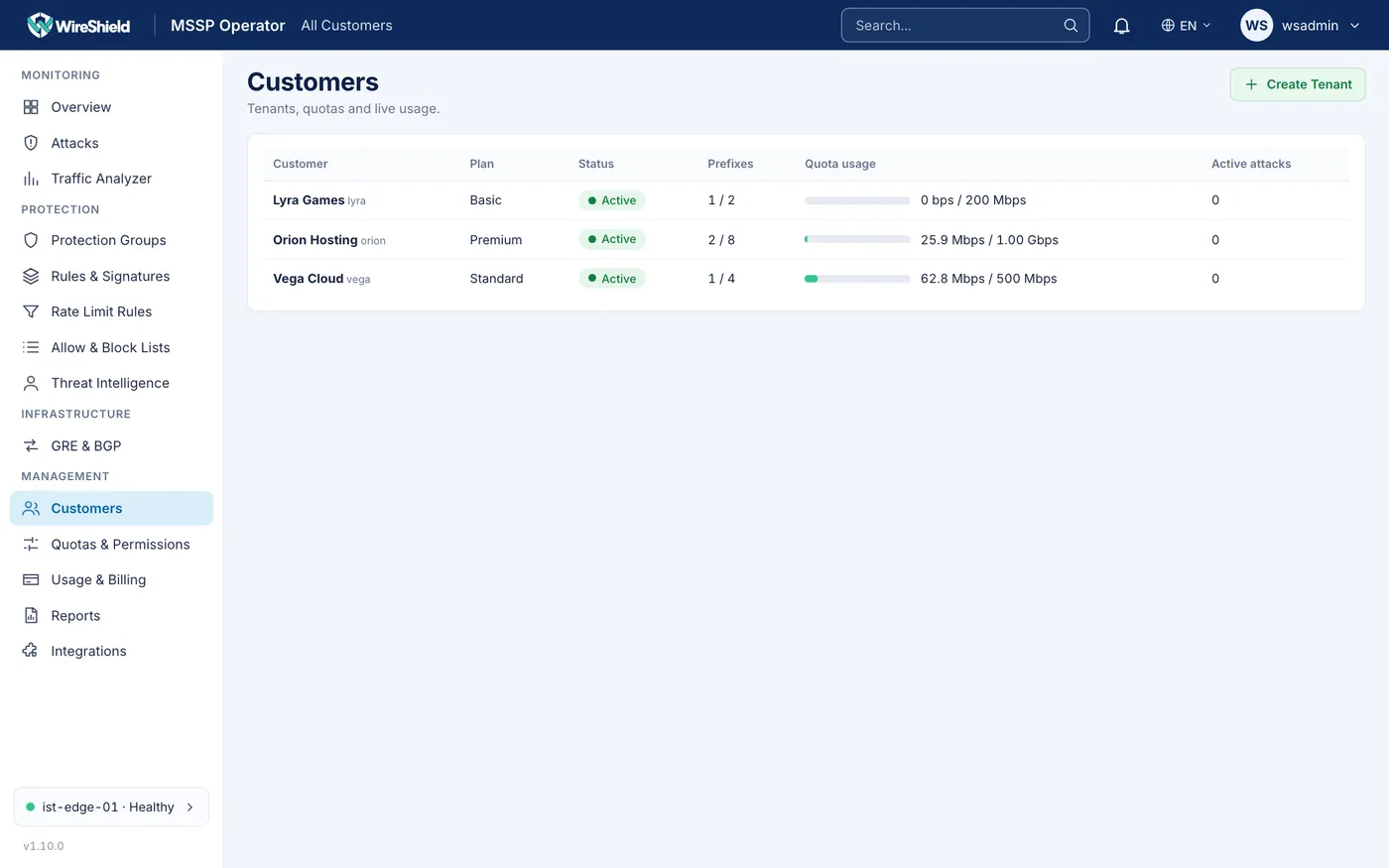
MSSP → Customers — customer list and Create Tenant form
9.3 Adding, moving and removing prefixes
On the customer detail page:
- Add prefix: choose Prefix (CIDR) (e.g.
203.0.113.0/24), Mode and Protection profile, then press Add prefix. Starting new prefixes in Monitor or Learning mode is recommended. In routed inline mode the prefix is routed to the downstream next hop automatically; remember to route the prefix to the appliance on your router. - Move to another customer (⇄): moves the prefix to another customer keeping its ID, mode, rules and lists; traffic is not interrupted. The target customer's quota is checked.
- Remove prefix (×): protection and routing for the prefix stop. Remove the route to the appliance on your router first.
An appliance without a usable licence accepts at most 3 prefixes and 2 customers, and traffic through it is limited to 100 Mbps (Chapter 11).
On the prefix detail page staff can also change the Protection profile and the Description (e.g. "Web Services"); the prefix's group is shown in the header. Groups are managed from the console shell (group list, group create -name <name>, prefix set <id> -group <n>).
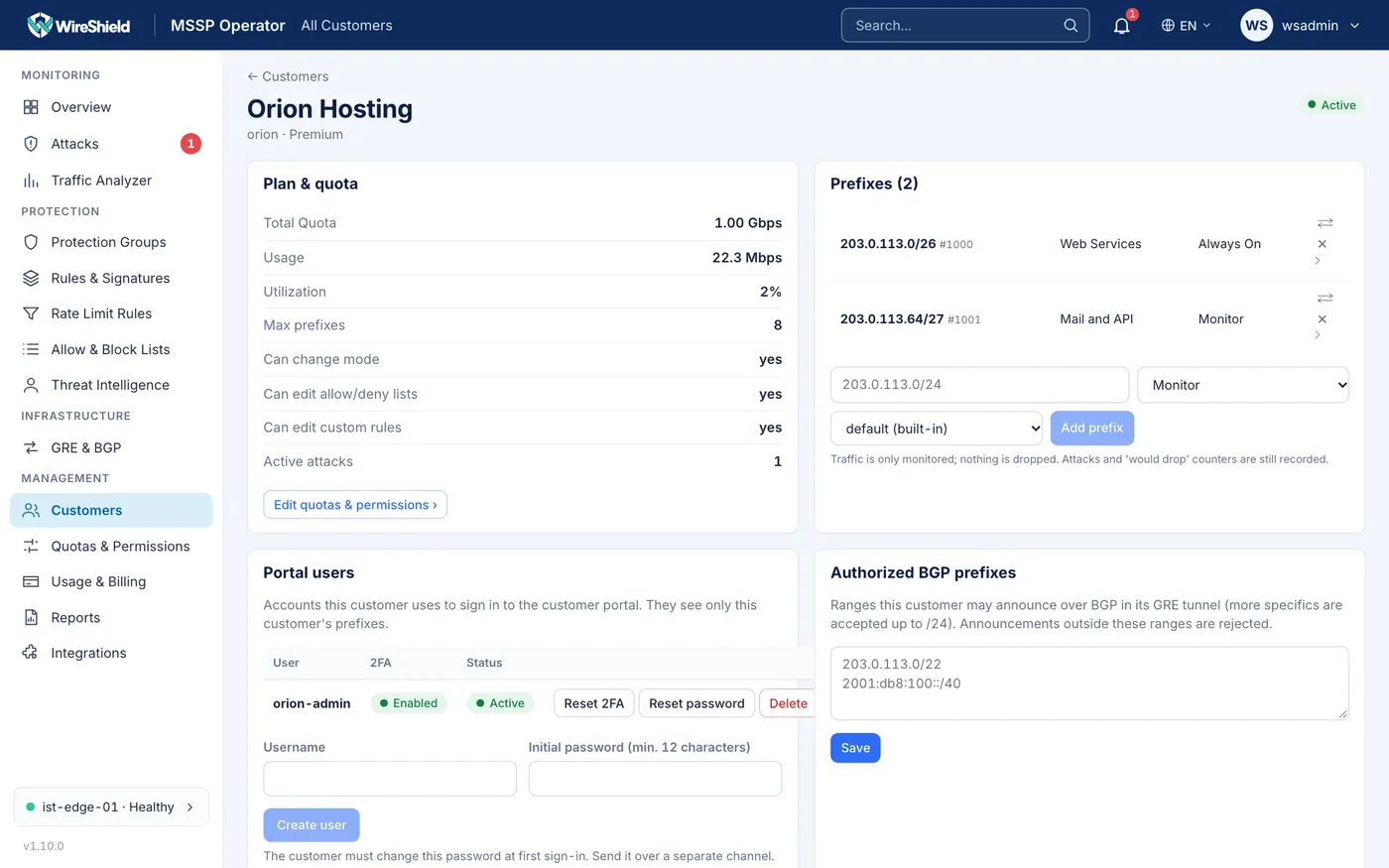
MSSP → Customers → customer detail — Plan & quota, Prefixes table and the Add prefix row
9.4 Quotas and permissions
The MSSP → Management → Quotas & Permissions page (the Edit quotas & permissions link on the customer detail page leads here):
| Field | Meaning |
|---|---|
| Quota (Gbps) | Bandwidth quota. When the last 60 s average exceeds 80 % a warning is shown, above 100 % it is shown as exceeded. The quota never cuts traffic; it is for warnings and reports. |
| Max prefixes | The customer's prefix limit. |
| Can change mode (Monitor / Always On) | The customer can temporarily change its prefixes' mode. |
| Can edit allow/deny lists | The customer can edit the Allow-list page. Staff manage the same lists on Protection → Allow & Block Lists (Chapter 8.4). |
| List limit per prefix | Default 100. |
| Can edit custom rules | The customer can add custom rules and ready-made protections. |
| Custom rules per prefix (max 16) | Default 8. |
Save. With the viewer role the fields are disabled.
Suspend customer: the customer's users can no longer sign in; protection continues.
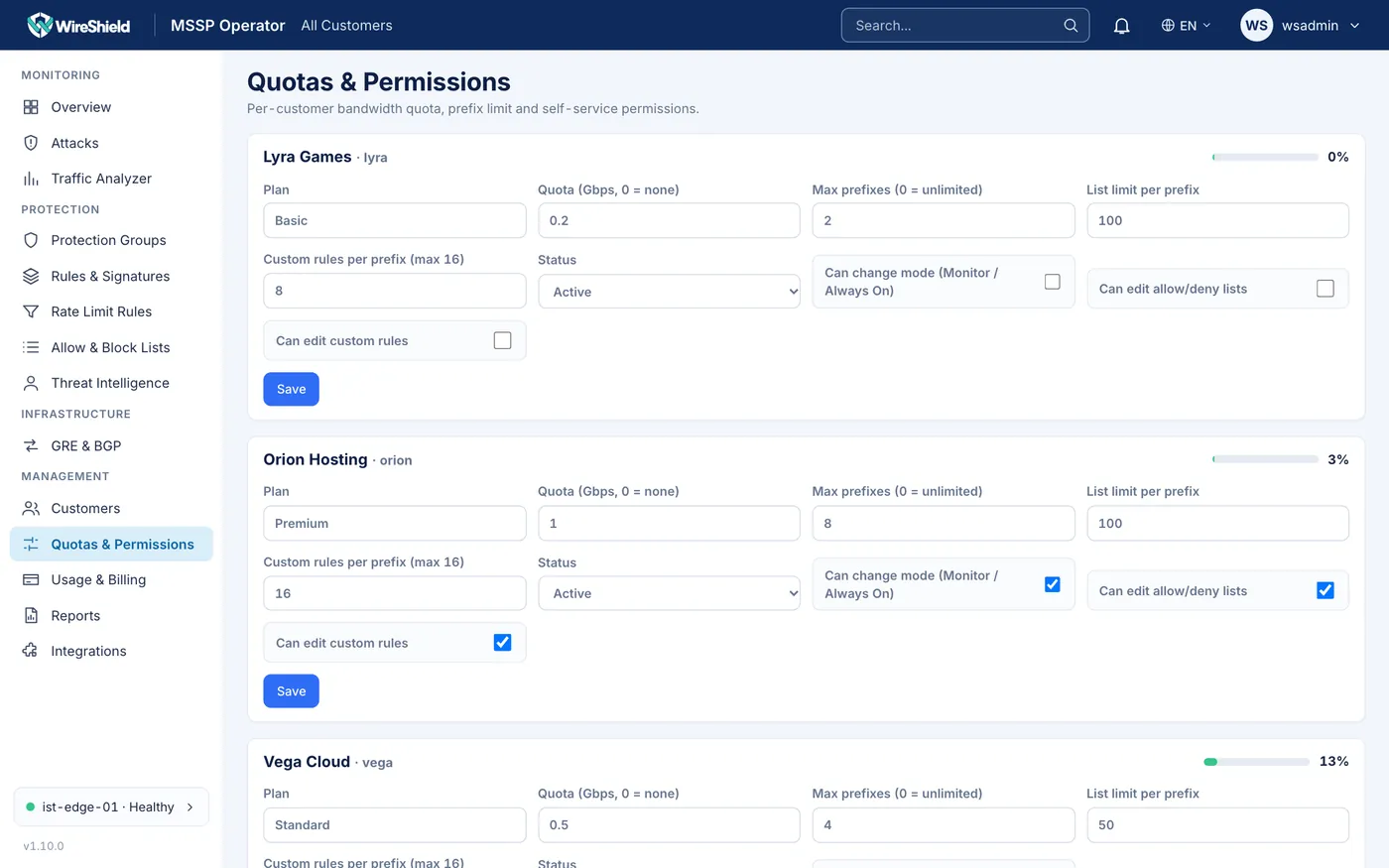
MSSP → Quotas & Permissions — per-customer quota and permission fields
9.5 Customer portal users
The Portal users card on the customer detail page:
- Enter Username and Initial password (min. 12 characters) and press Create user. The customer must change this password at first sign-in; send it over a separate channel.
- Row actions: Unlock (account locked after failed sign-ins), Reset 2FA (the user sets it up again at the next sign-in), Reset password (must change at next sign-in), Delete (active sessions and tokens are revoked).
Customer users see only their own customer's prefixes.
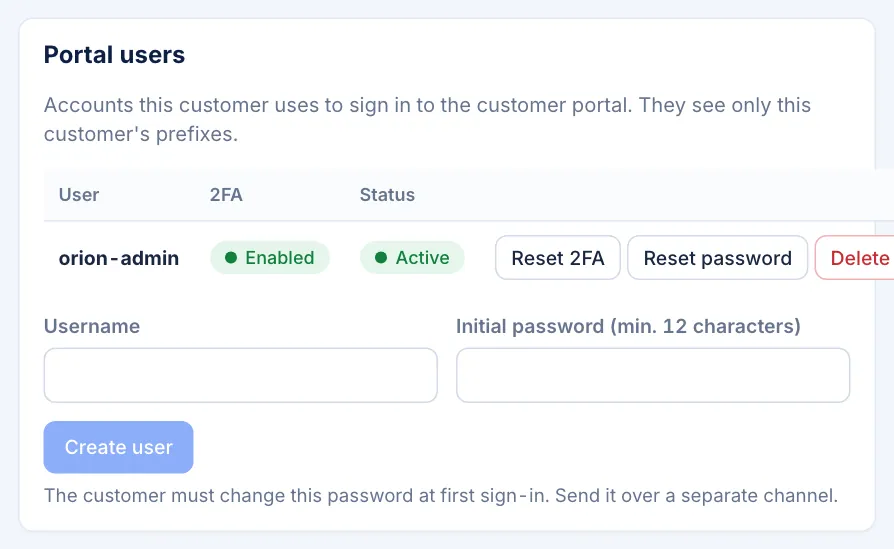
Customer detail → Portal users card
9.6 Staff users (Users & Roles)
Admin only: Appliance Admin → Management → Users & Roles.
- Under Add user, enter Username, Role (
viewer,operator,adminortenant), fortenantthe Customer, and Initial password (min. 12 characters), then press Create user. The user must change the password at first sign-in. - The table shows each user's role, customer, 2FA state (Enabled, Exempt, Exempt (off), Required, not set up, Off), sessions and status (Locked, Must change password).
- Row actions: Unlock (shown for an account locked after failed sign-ins), Exempt from 2FA / Require 2FA, Reset 2FA, Reset password, Delete.
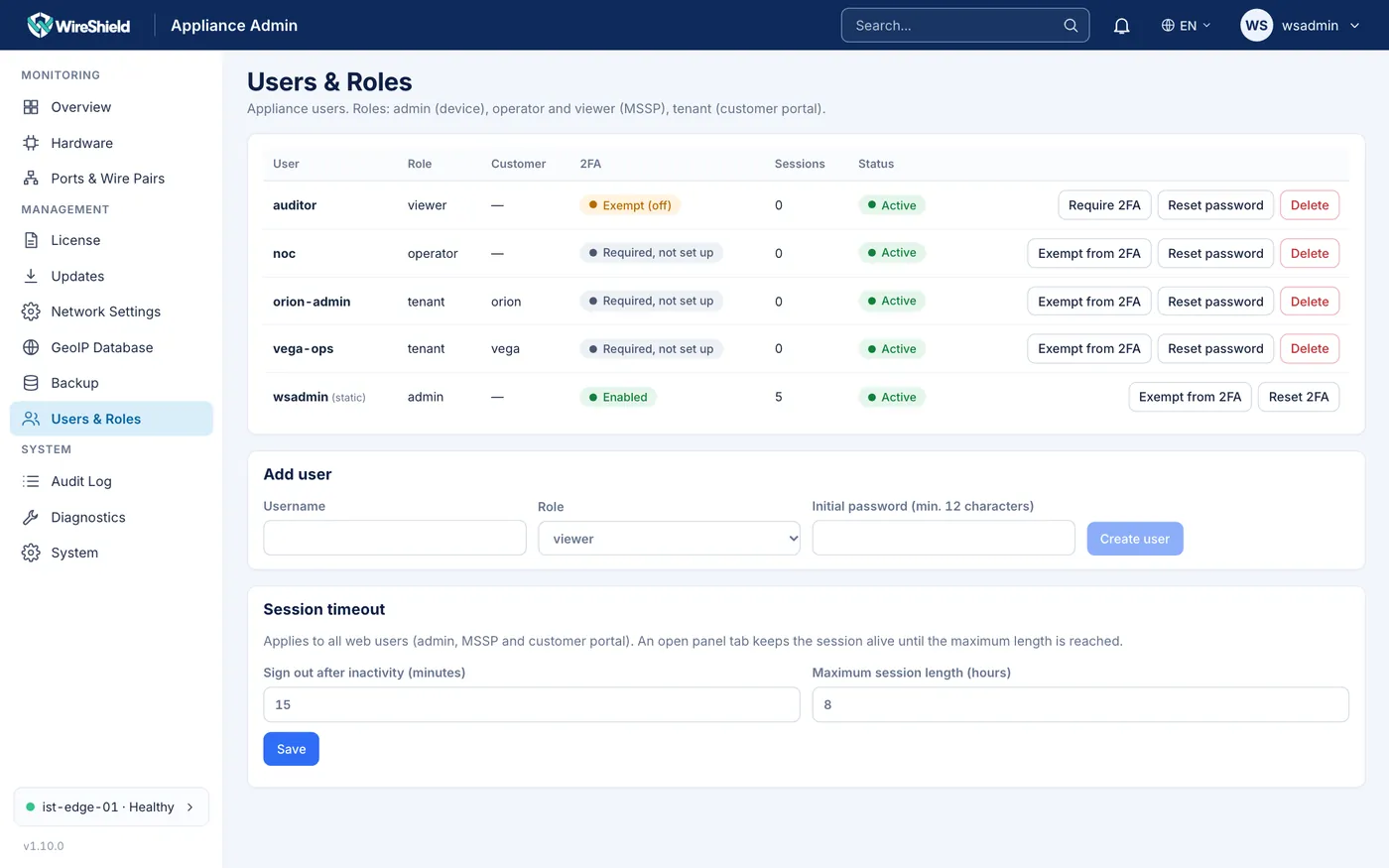
Management → Users & Roles — user table, 2FA states, Add user form
Session timeout
The Session timeout card on the same page applies to all web users (admin, MSSP and customer portal):
- Sign out after inactivity (minutes): 1–1440 (default 15)
- Maximum session length (hours): 1–168 (default 8)
Save; the change applies immediately. An open panel tab keeps the session alive until the maximum length is reached. Each user can have at most 5 concurrent sessions.
9.7 Two-factor authentication (2FA)
- 2FA is required for all roles by default. Setup is requested at the first web sign-in (Chapter 1.8): QR code, 6-digit code and 10 single-use recovery codes.
- At sign-in, enter the 6-digit code or a recovery code in Verification code (2FA).
- A password change, 2FA reset, or user deletion/suspension ends all sessions.
2FA exemption (admin only; for any web user, including the admin):
- In Users & Roles, press Exempt from 2FA on the user's row.
- In the dialog, tick the option to also turn off 2FA already set up if you want that (sessions end; the next sign-in asks only for the password). Otherwise the code is still asked while 2FA stays set up (Exempt tag).
- To remove the exemption, press Require 2FA. A user without 2FA set up loses current sessions and must set it up at the next sign-in.
Resetting 2FA (lost phone): Reset 2FA deletes the recovery codes and ends the sessions; if 2FA is required, it is set up again at the next sign-in. From the console: user totp-reset <name> (Chapter 13).
Account lockout: after 5 failed sign-ins a user is locked for 15 minutes. There is also a limit of 10 sign-in attempts per minute per address. To unlock: Unlock on the user's row in Users & Roles or on the Portal users card, or user unlock <name> from the console.
9.8 API tokens
In every view: user menu (top right) → API tokens. A token acts as you and has your permissions.
- Name (e.g. "e.g. SIEM integration").
- Lifetime: 1 day, 30 days, 90 days, 180 days or 1 year.
- Read-only (recommended): a read-only token cannot change anything.
- Allowed source networks (optional, one CIDR per line, at most 16): the networks your integration runs from.
- Create token. Copy the token now: it is shown only once. Send it as an HTTP header:
Authorization: Bearer wsk_….
The table shows name, access (Read-only / Read & write), allowed networks, created, expires and last used; Revoke invalidates a token immediately. At most 20 tokens per user. A token cannot create other tokens. The API documentation link on the page opens the API reference served by the appliance (Chapter 10.9).
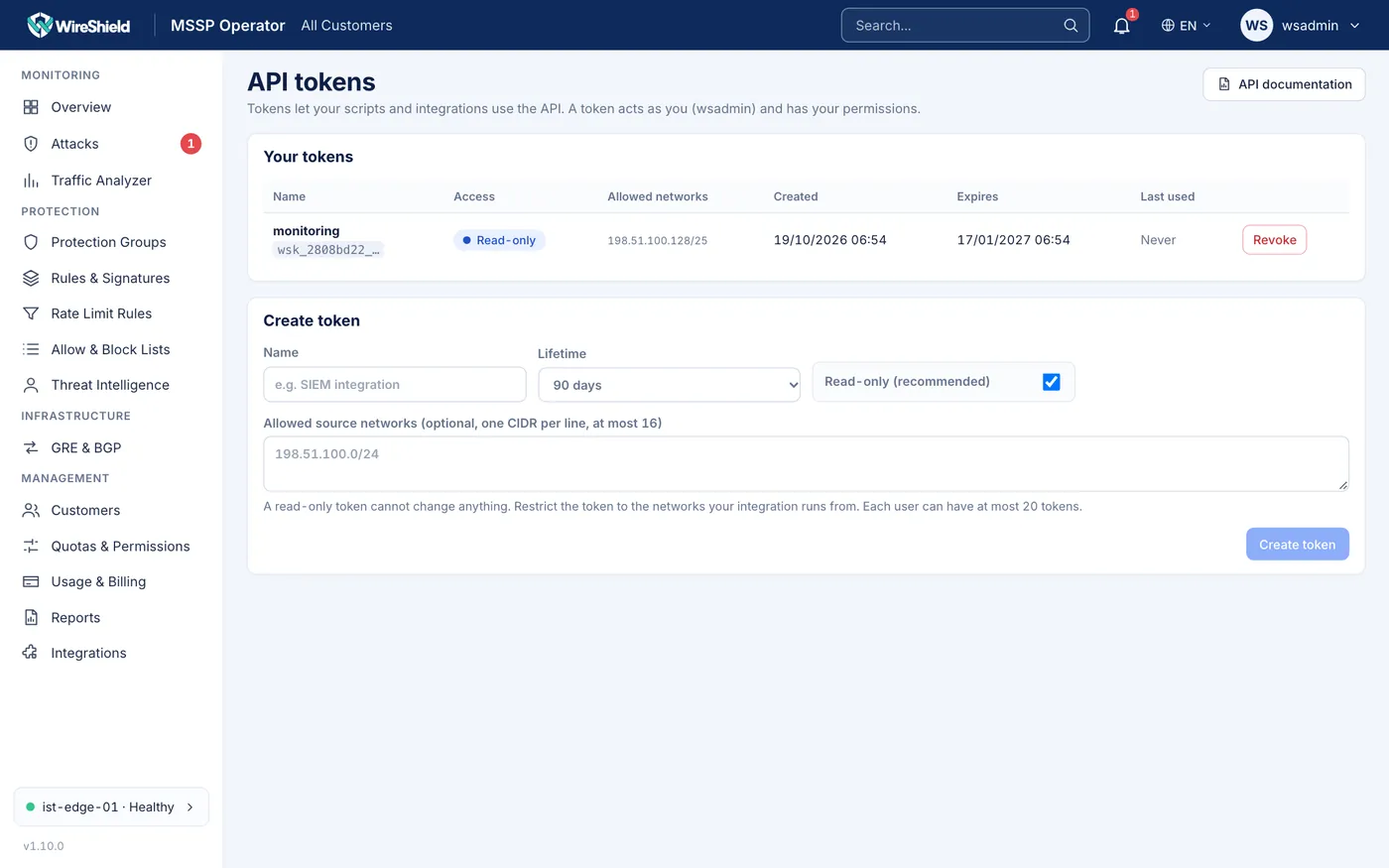
User menu → API tokens — token table and Create token form
9.9 Usage and billing
MSSP → Management → Usage & Billing: choose the Month; per customer the page shows Clean traffic, Average, 95th percentile, Peak, dropped traffic, attack count/time and Over quota samples, plus Total clean traffic. Billing uses exact kernel counters in 5-minute buckets, not samples.
In the console shell: usage -month 2026-09 (summary) and usage -month 2026-09 -csv (CSV export).
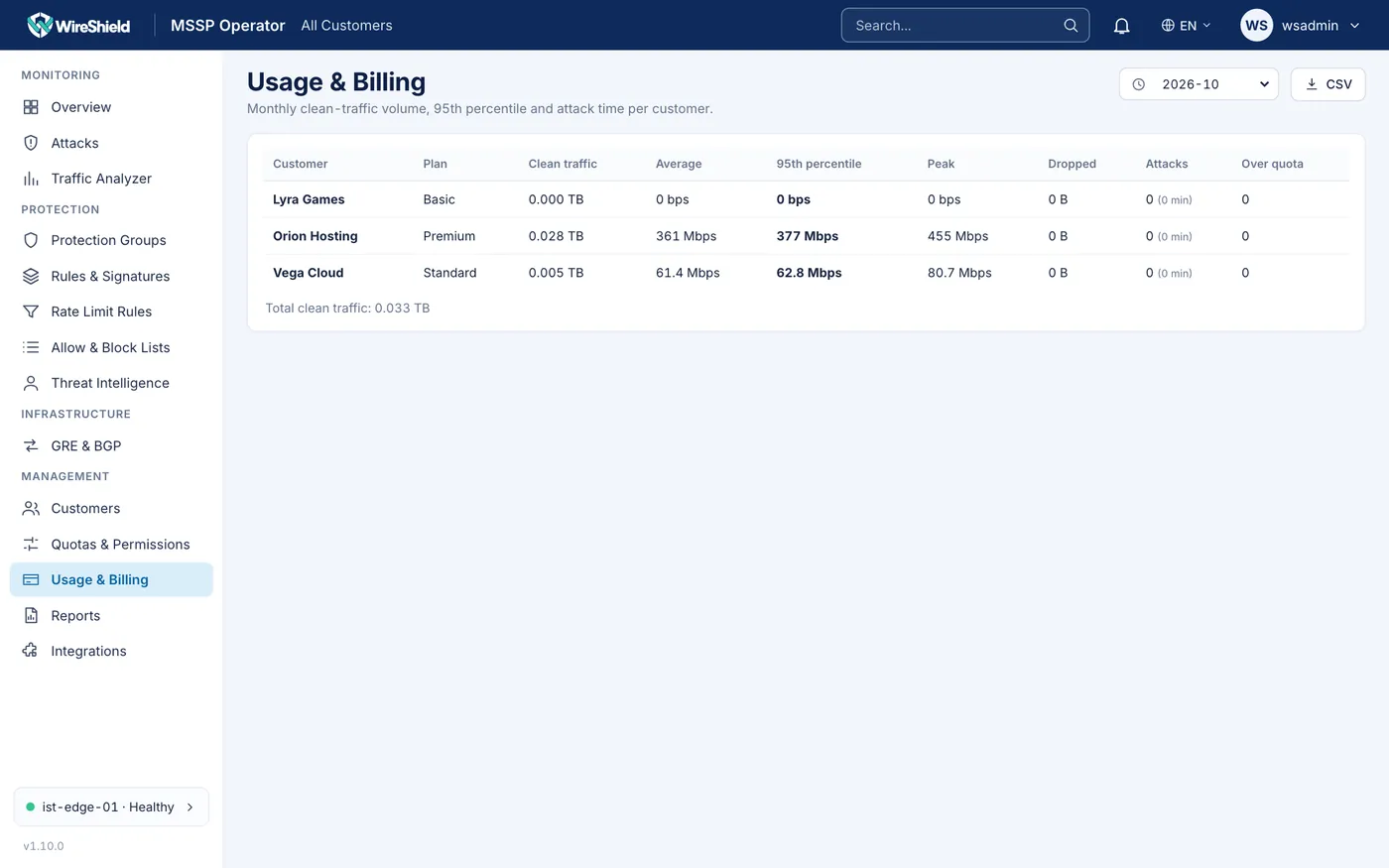
MSSP → Usage & Billing — monthly table
9.10 The customer portal (what customers see)
| Menu | Pages |
|---|---|
| Monitoring | Overview (protection status, quota, tunnels, BGP, mode, recent attacks, prefixes), My Attacks, Traffic Analysis |
| Protection | My Prefixes, Protection Groups, My Rules (active protections and profile rules; detection thresholds are not shown), Custom Rules, Rate Limit, Allow-list |
| Network | GRE Tunnels, BGP Sessions |
| Reporting | My Reports, Notifications |
On the prefix page a customer can, if permitted, switch the mode between Monitor and Always On, and add ready-made protections and custom rules. Staff user names and detection thresholds are not shown to customers.
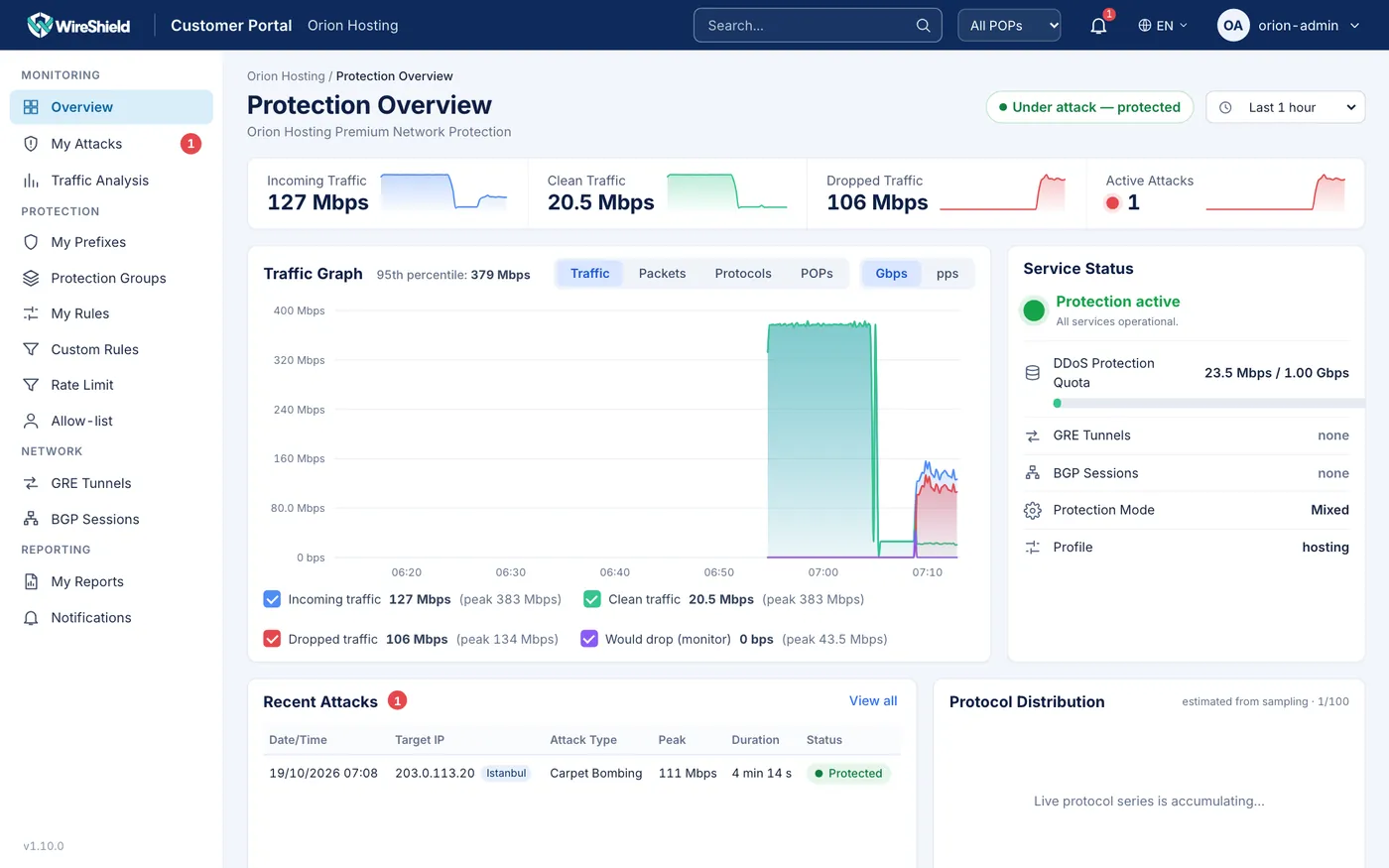
Customer Portal → Overview — protection status, prefixes table