


Updates, backup and licence
11.1 Update packages
| Package | Contents | Takes effect | If something goes wrong |
|---|---|---|---|
wireshield-<version>-amd64.wsu | Application: web interface, wsd, wsctl, data-plane program | Immediately (service restarts, a few seconds) | Rolls back to the previous version automatically if the health check fails |
wireshield-os-<version>.raucb | Operating system (A/B) | After a reboot | Falls back to the previous system automatically if the new one fails to boot in 3 tries |
Both packages are signed; nothing is installed unless the signature verifies. Older versions, and versions that were rolled back before, are not installed. Data, configuration and the application version live on the data partition and are not affected by operating system updates.
11.2 Updating from the panel
Admin only; over the network, only from a 2FA session. Appliance Admin → Management → Updates.
- On the Install an update card, Choose a file or drag it here (
.wsuor.raucb, up to 4 GiB). - Upload and install. Upload percentage and install state are shown.
.wsu: on success, "Version X is installed and running." is shown; output appears under Details only on errors..raucb: installation takes a few minutes (package ≈ 400 MB) and is written to the inactive slot. When done, "The new operating system is installed. It becomes active after a reboot." and Reboot now appear.
The page also shows Current release (current, previous, installed releases, operating system version), Rolled-back releases, Installed releases and History. A new version waiting for the health check shows Awaiting confirmation, then Confirmed.
Recommendations:
- Install the
.wsufirst and then the.raucbof the same version. - A reboot takes 2–3 minutes and no traffic passes meanwhile; do it in a maintenance window. With BFD, move traffic to the direct path first with Take out of path (maintenance) (Chapter 3.4).
From the console shell: update status shows the last update, reboot reboots the appliance. Packages are installed from the panel.
The operating system image matters: some 1.10.0 features need the 1.10.0 OS image (.raucb) as well as the application — backups in the panel (11.3), the DNS servers card (Chapter 3.8), the console recovery user (Chapter 13.10) and the locked boot menu editor.
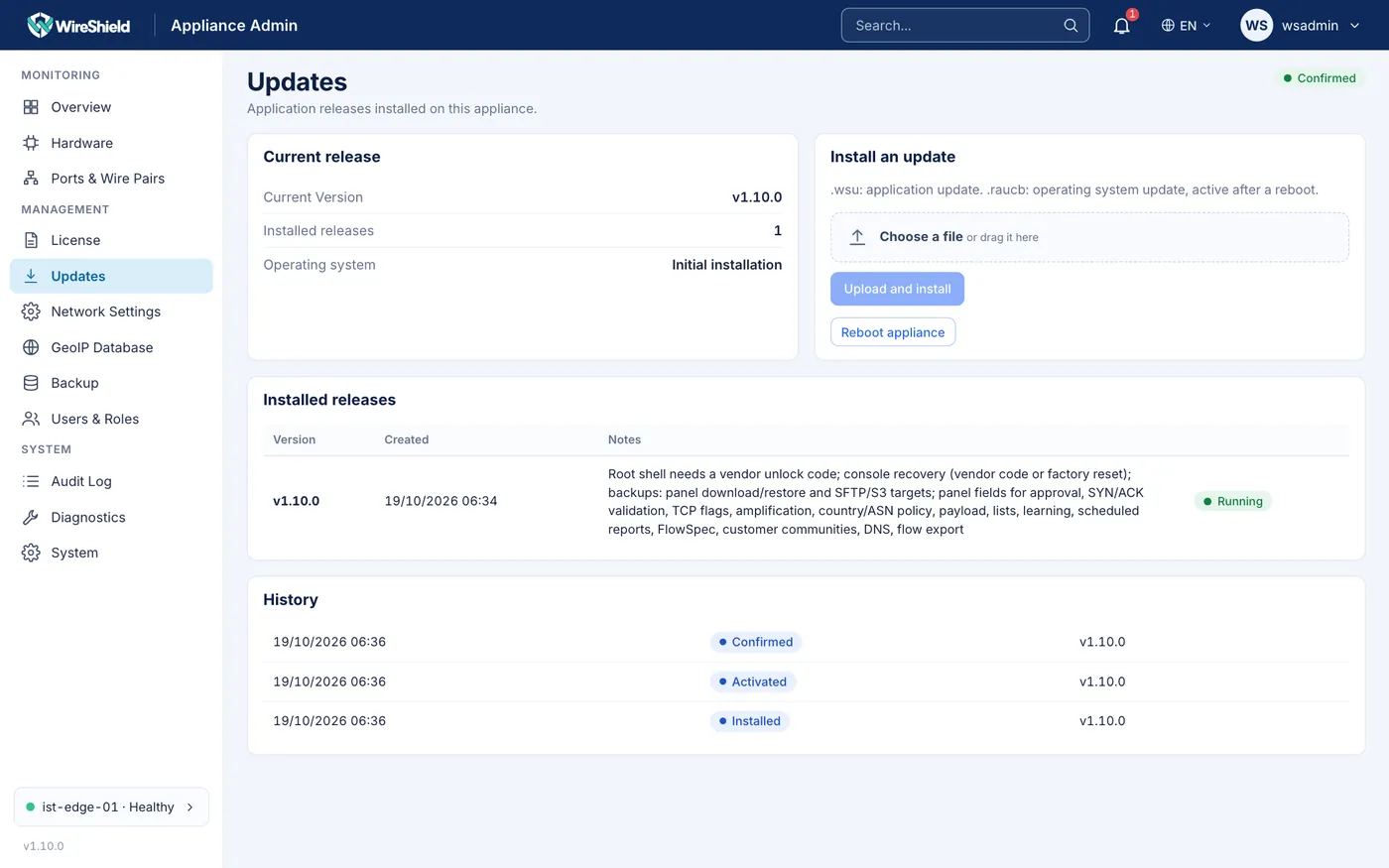
Management → Updates — "Install an update" card (choose/drag file), Current release, History 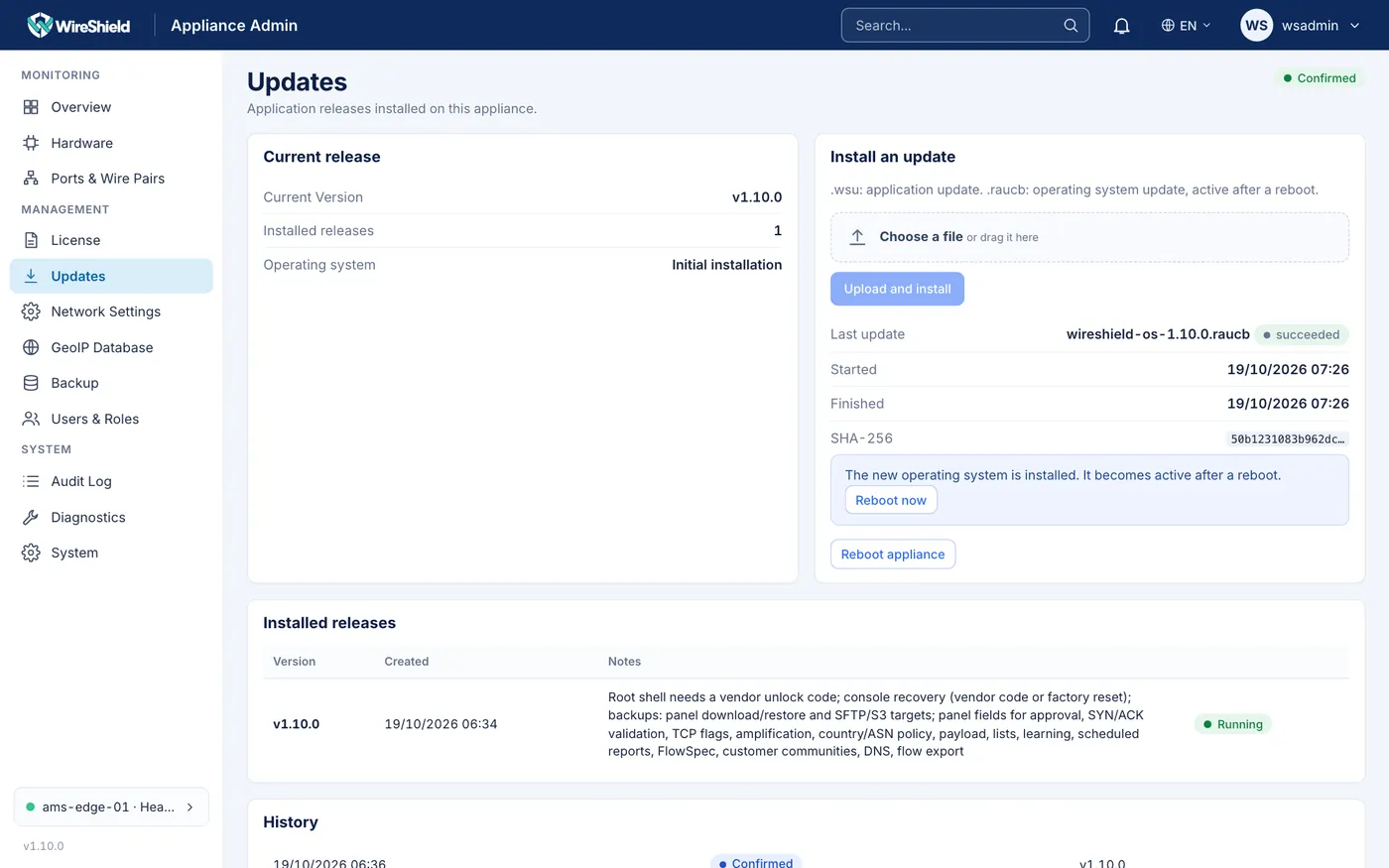
Updates — .raucb installation finished, "Reboot now" button
11.3 Backup
Configuration and history are backed up encrypted (AES-256-GCM). There are no unencrypted backups. A backup opens only with the BACKUP PASSPHRASE that the setup wizard showed once (Chapter 1.6). Keep it offline, and keep the passphrase of every appliance whose backups you store: you need it to restore that appliance's backup on another one.
- Automatic: every day (around 03:30) the appliance takes a backup and keeps the newest 7 on the appliance. The daily backup uses the backup plan of the running release, so new settings (management access, LLDP, remote backup targets…) are included.
- Contents:
config(configuration, users and credentials, TLS, licence, notifications, reports, learning data…) andhistory(audit chain, events, notes, usage, series, reports). Trust keys are never included. The attack sample archive and PCAP files are not part of the daily backup.
Backups on the appliance are lost if its disk fails: download them or send them to a remote target (below).
All backup functions are on Appliance Admin → Management → Backup (admin only; the page and its API work only on the management interface, not through the portal server). They need the 1.10.0 operating system image or later; on an older image the page shows a note asking you to install the latest OS update (.raucb, 11.2).
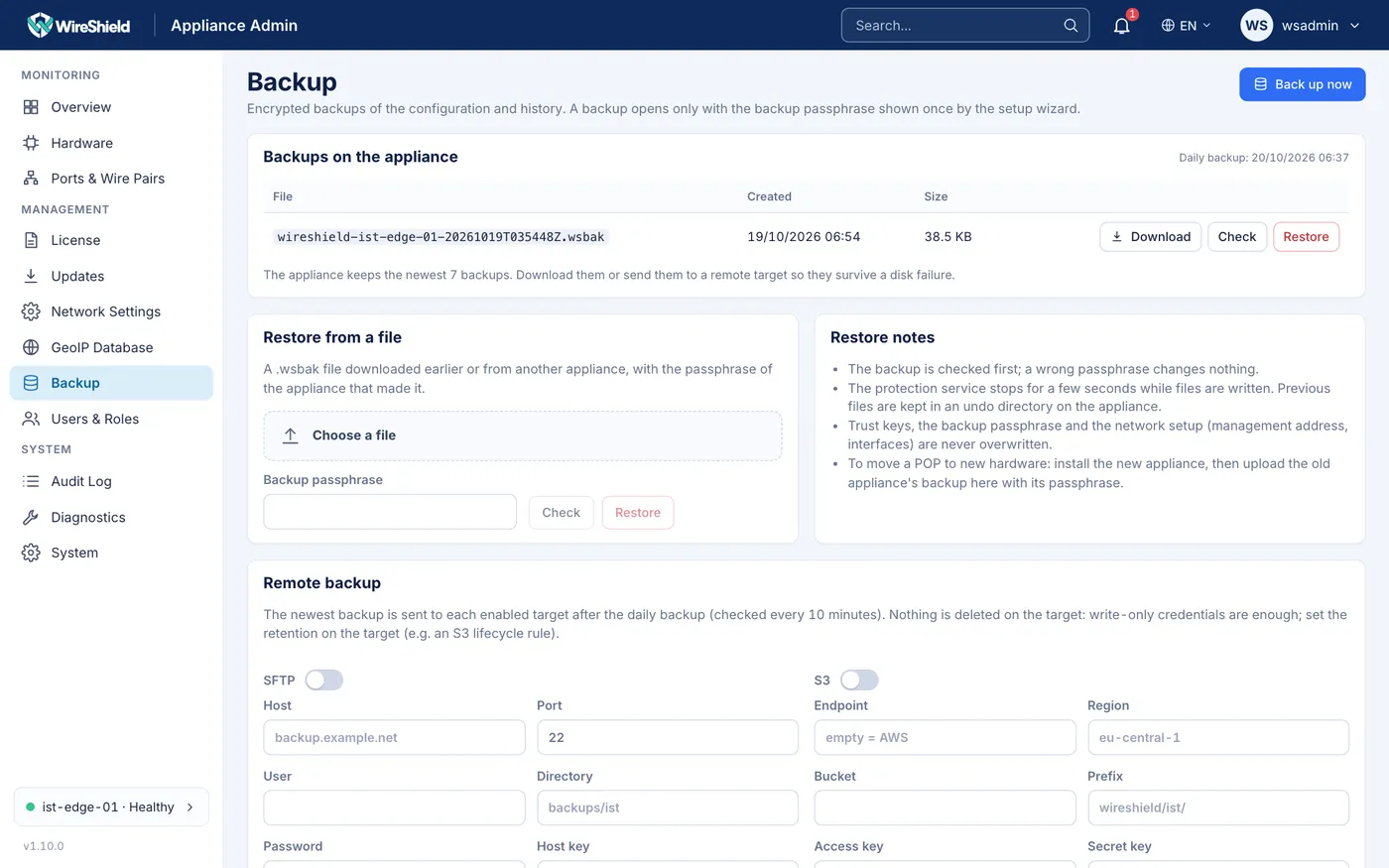
Management → Backup — backups on the appliance (Download/Check/Restore), Restore from a file, Remote backup (SFTP and S3)
Backups on the appliance
The Backups on the appliance card lists the backup files (name, Created, Size) and, in its header, the next Daily backup run (and last run failed if the last daily backup failed). File names look like wireshield-<host>-<YYYYMMDDTHHMMSSZ>.wsbak.
- Back up now (top right): starts a backup immediately; it appears in the list after a few seconds.
- Download: saves the encrypted
.wsbakfile to your computer. Downloads are written to the audit log. - Check: verifies the backup with the passphrase and lists its contents. Nothing is changed.
- Restore: see below.
If the appliance has no backup passphrase, the page says so and no daily backup is taken; run the setup wizard again or contact support.
Restoring
- Press Restore on a backup (or use Restore from a file, below).
- In the Restore backup dialog, choose the categories: Configuration, History (audit, attacks, usage, series) and, if the backup contains them, Forensic samples and PCAP. The first two are selected by default.
- Press Restore.
What happens:
- The backup is checked first; a wrong passphrase changes nothing.
- The protection service stops for a few seconds while files are written, then starts again; the panel reconnects in a moment and shows Backup restored (or the error output if it failed).
- Overwritten files are kept in an undo directory on the appliance.
- Trust keys, the backup passphrase and the network setup (management address, interfaces) are never overwritten.
Restore from a file (moving to new hardware)
The Restore from a file card restores a .wsbak file downloaded earlier or taken on another appliance.
- Choose a file (a
.wsbakfile). - Enter the Backup passphrase of the appliance that made the backup.
- Check to verify it and see its contents, or Restore (then choose the categories as above).
To move a POP to new hardware: install the new appliance (Chapter 1), then upload the old appliance's backup here with the old appliance's passphrase. The new appliance keeps its own network setup and its own backup passphrase.
The same applies after a factory reset (Chapter 13.10): the reset erases the local backups and the wizard shows a new backup passphrase, so restore a downloaded or remote backup with the old passphrase.
Remote backup (SFTP and S3)
The Remote backup card sends backups off the appliance. After the daily backup, the newest backup is uploaded to each enabled target (checked every 10 minutes). Send newest now uploads it immediately.
Nothing is ever deleted on the target, so credentials that can only write are enough. Set the retention on the target itself (for example an S3 lifecycle rule that deletes objects after 90 days).
SFTP:
- Switch on SFTP.
- Host (e.g.
backup.example.net), Port (default 22), User, Directory (e.g.backups/pop1). - Password and/or Private key (optional, without passphrase) (OpenSSH format). Saved secrets are never shown again; leaving the field empty keeps the saved value ((unchanged)).
- Press Test. The first time, the test reports that the server's host key is not trusted yet and shows its fingerprint. Compare it with the server's own fingerprint, for example on a trusted machine: ``
ssh-keyscan backup.example.net | ssh-keygen -lf -`` If it matches, press Trust this key: the key is pinned in Host key. If the server's key changes later, uploads stop until you test and trust the new key. - Press Test again (a test file
wireshield-connection-test.txtis written), then Save.
S3-compatible storage:
- Switch on S3.
- Endpoint (empty = AWS; for other providers e.g.
https://s3.example.net), Region (e.g.eu-central-1), Bucket, Prefix (e.g.wireshield/pop1/), Access key, Secret key. - Tick Path-style addresses (MinIO, Ceph) for storage that needs it.
- Test, then Save.
Under each target the card shows the last upload (Sent, file, time, size) or Last upload failed with the error. A failed upload also raises a system alert in the panel and on your notification channels (Chapter 10.5).
Appliances with an older operating system image
Before the 1.10.0 OS image, backups could be listed, taken and restored only from the root shell (wsbackup), and the daily backup used the image's built-in plan, so settings added by later releases could be missing (the workaround was wsctl backup plan with wsbackup create -plan). Since 1.10.0 the root shell is for WireShield support only; install the OS update to manage backups from the panel. If you need a backup restored on an appliance that cannot be updated, contact support.
11.4 Licence
Appliance Admin → Management → License shows the licence state, limits and features: status, Licensed to, License ID, Edition (Standard, Pro, MSSP, Evaluation), Valid from, Valid until, Days left, Enforced, Device ID and Limits & features.
Getting a licence:
- Send the Device ID from the License page (or the machine ID from
show licenseon the console) to your vendor. - You receive two files:
license.jsonandlicense.sig(Ed25519 signature). Activation is offline; no internet connection is needed.
Importing (admin only):
- On the Import license card, choose both files with Load from files (.json + .sig), or paste their contents into License (JSON) and Signature.
- Import. No restart is needed.
A licence with an older issue date cannot be imported after the installed one.
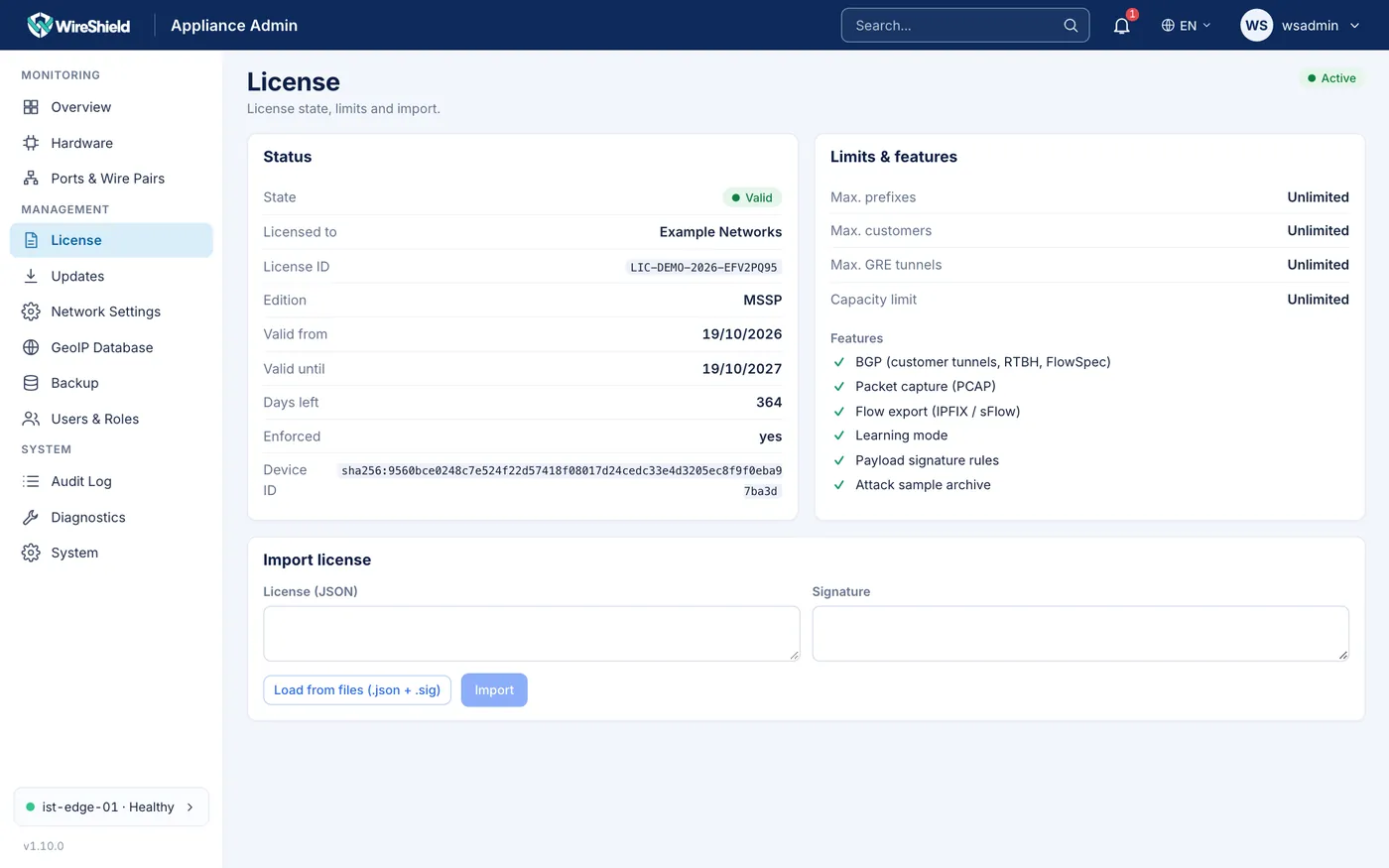
Management → License — licence state, limits and features, Import license card Licence states and their effect:
- No usable licence (none installed, or the installed licence is for a different appliance; evaluation scope):
- at most 3 prefixes, 2 customers and 2 GRE tunnels are protected; PCAP and IPFIX/sFlow export are off;
- the total traffic passing through the appliance is limited to 100 Mbps; the excess is dropped. The License page shows "Without a license the appliance passes at most 100 Mbps of traffic (the rest is dropped) and protects at most 3 prefixes. Import a license to remove the limit." and the device status shows the health warning "No license is installed: traffic through the appliance is limited to 100 Mbps";
- after a valid licence is imported, the limit is lifted within 15 seconds; no restart is needed.
- An expired licence never cuts traffic: during a 30-day grace period everything works with a critical warning. After the grace period, new features and resources cannot be added; existing items, edits, deletes and protection continue, and no traffic limit applies. Existing resources above the limit are never removed.
- Alerts: system alerts 30, 14, 7 and 1 days before expiry.
Licensed features: BGP (customer tunnels, RTBH, FlowSpec), packet capture (PCAP), flow export (IPFIX/sFlow), learning mode, payload signature rules, attack sample archive.